Home / Platform
One platform for your whole crew. Built to be trusted.
Crews is the operating system for AI workers: where you hire them, give them tools, set their rules and watch their work. It is the same in every business, and it is made to be run by people who are not technical.
Your people on one side. Your systems on the other.
Crews sits in the middle. Workers do the jobs, and the platform keeps every one of them inside the rules you set.
Your people
Ask for work in plain words, in chat, by email or on the phone. Approve from anywhere.
Crews
One crew of workers, one set of rules.
Each worker has its own private workspace, and each company's data is kept apart from every other.
Your systems
Workers reach them through connectors. Passwords and keys stay out of the AI's sight.
Hire a worker for a job. Group them into a crew.
A worker has a name, a job, instructions and the tools it may use. A crew is a team of workers who share a chat, notes and a routine, so the work moves between them like it would between colleagues.
- Tag a worker in the crew chat, the way you would tag a colleague.
- Workers hand a job on, or hand it back to a person, with the whole story attached.
- Describe the crew you want in plain words and the Builder drafts it for you to approve.

Example from Crews for Motor Trade. Real product screen.
Say what you want. Your crew sets it up.
You should not need a settings screen for everything. Talk to a worker, or to a whole crew, the way you would talk to a new colleague. It does the set-up, repeats back what it changed, records it and gives you an Undo.
Describe it and it is built
Tell the Builder the crew you want. It drafts the workers, the connections and a schedule for you to approve. Ask a worker to change its schedule, keep a note or remember a rule, and it does.
Webhooks arrive in the worker's chat
A message from another system shows up in that worker's chat, marked as coming from outside. You set the rules by talking to the worker. It starts careful, and after your Yes it can act on its own within daily limits.
Recipes: save a crew set-up
When a crew works the way you want, save it as a recipe: its workers, instructions, connections and routines. Review it, then use it for another crew, or share it with another company. Passwords and keys are never saved in a recipe.
Invite your team by chat
Ask a worker to invite a colleague, and it sets up their access with the role you choose. You confirm on a card first.
Screens in chat
Results arrive as a table, a card, a chart or a gallery you can read at a glance, not a wall of text. Buttons on them follow the same Allow, Ask or Block rules.
Everything else, by chat
Connect an app, set email rules and phone settings, choose who approves what. A card shows the change with an Undo, and keys and passwords are still typed only into a secure box, never into the chat.
Allow, Ask or Block. For every action.
You set the rules once, per worker. When a worker reaches a rule that says Ask, it stops and sends you the request. Everything it does is recorded.
- One approvals inbox for phones, email, PCs and connected systems.
- Approve, change it, or say not now. From your phone if you like.
- A stop button on every worker, and limits on how much each can do.
Teach it once. It remembers.
Write what a worker should do in plain English. It keeps its own memory between jobs, such as your tone of voice and the rules it must follow, and shares notes with its crew.
- Instructions you can read, edit and roll back.
- House rules the worker remembers: tone, who handles what, customer preferences.
- Shared notes so one worker's finding reaches the rest of the crew.
- A worker can write its own notes and keep its own records, and you can read them all.
- Skill files and tool guides: short how-to notes that teach a worker your way of doing a job or using a tool, kept with the worker.
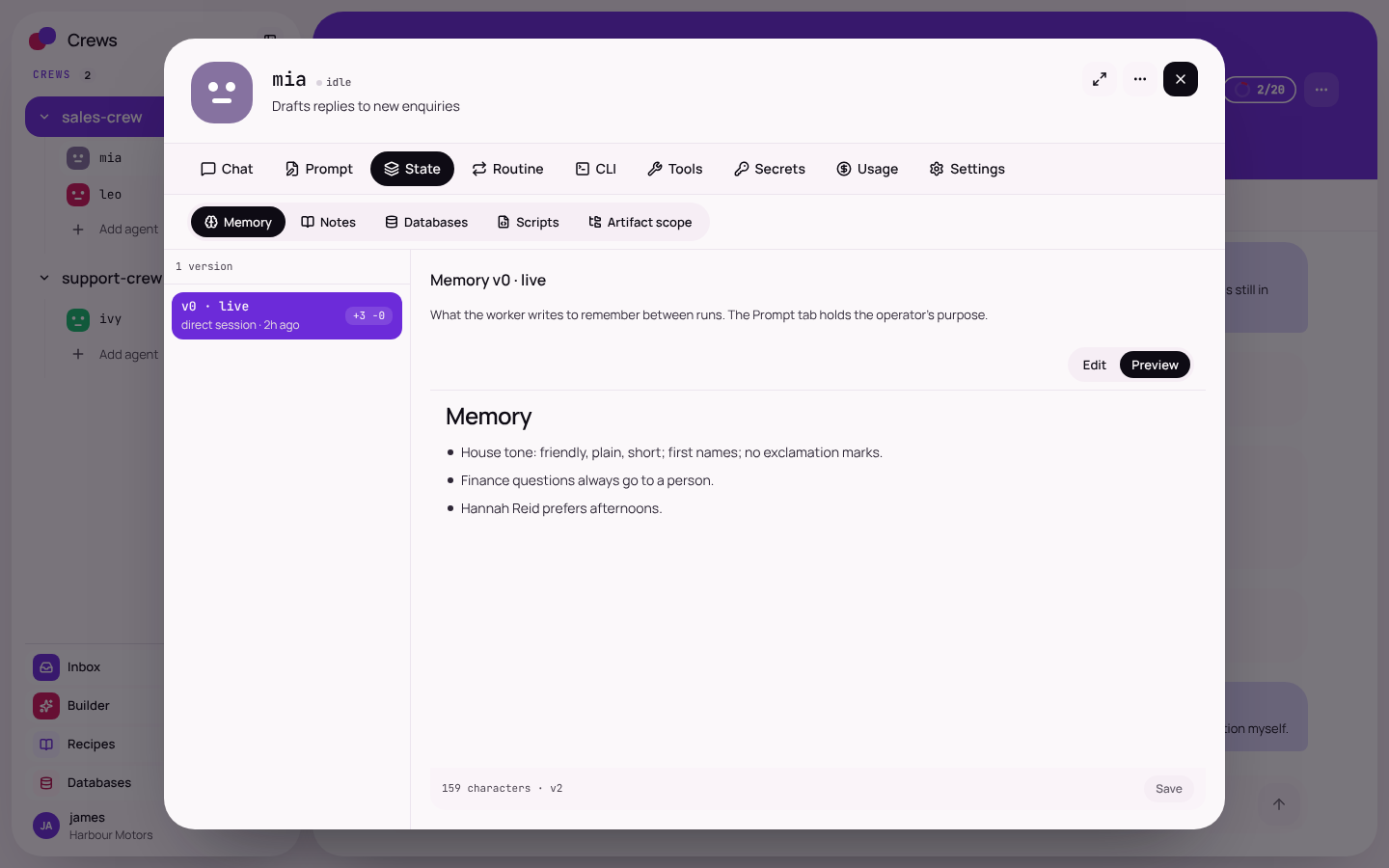
Example: what one worker remembers. Real product screen.
Set it to run. Go home on time.
Give a crew a schedule: every weekday at 7am, once a week, or at a random time within a window. Switch every routine in a crew off with one control.
- Overnight and weekend work without anyone logged in.
- Ask a worker in chat to set a routine up or change it. Times follow your company's own time zone.
- One-off reminders ("in two hours") as well as repeating schedules.
- Quiet checks: a worker looks regularly and speaks up only when something has changed.
- A summary waiting for you in the morning.
- Pause a whole crew at once, then switch it back on.
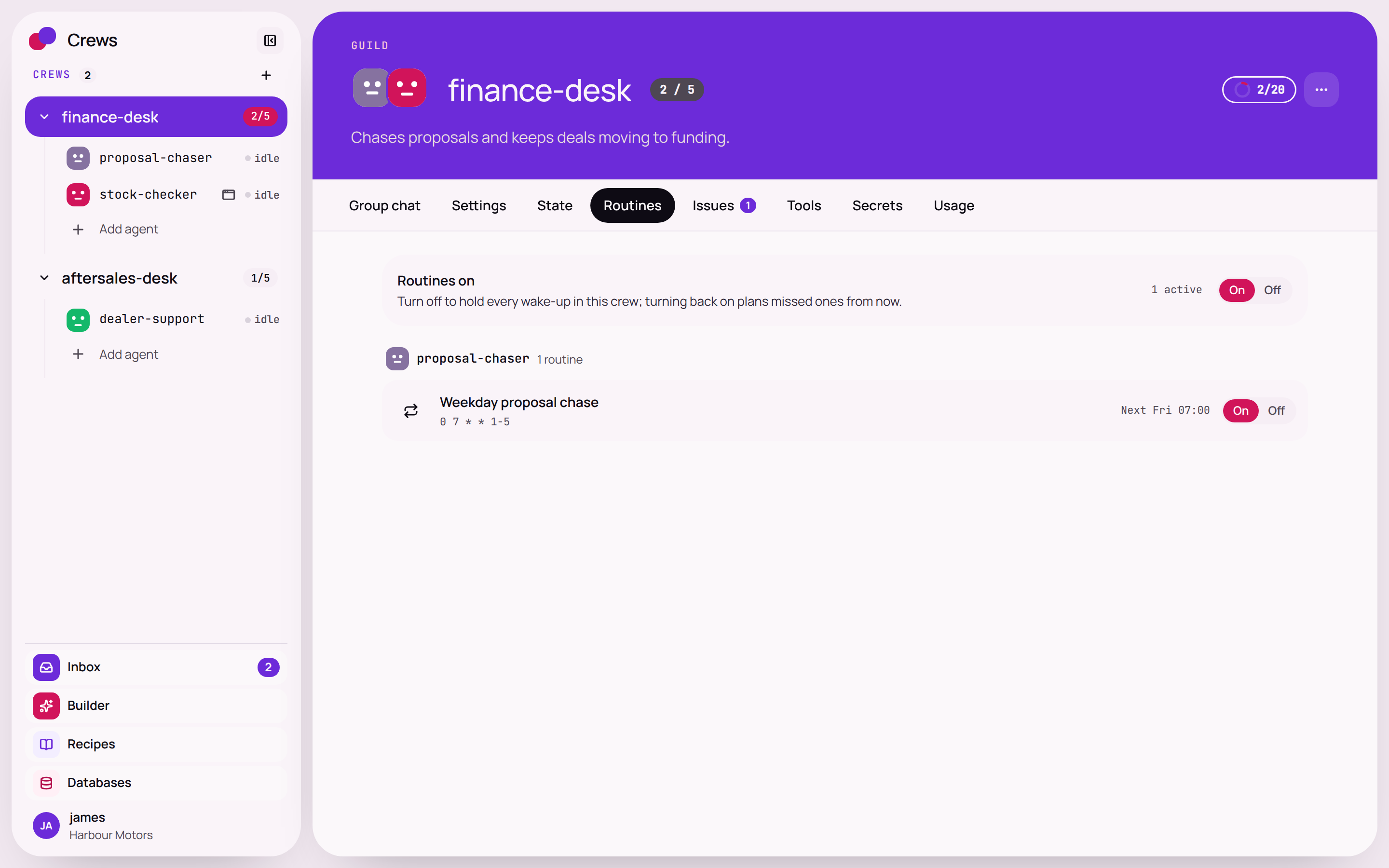
Example: a weekday routine. Real product screen.
Every step is on the record. Nothing is a black box.
Open any run to see the steps a worker took, the tools it used and how long each took. When something goes wrong, the problem lands in your inbox, not in a log nobody reads.
- Step-by-step view of every run.
- Problems and questions arrive in one inbox, on desktop and phone.
- A coach that explains why something ran late or went wrong, in plain words.
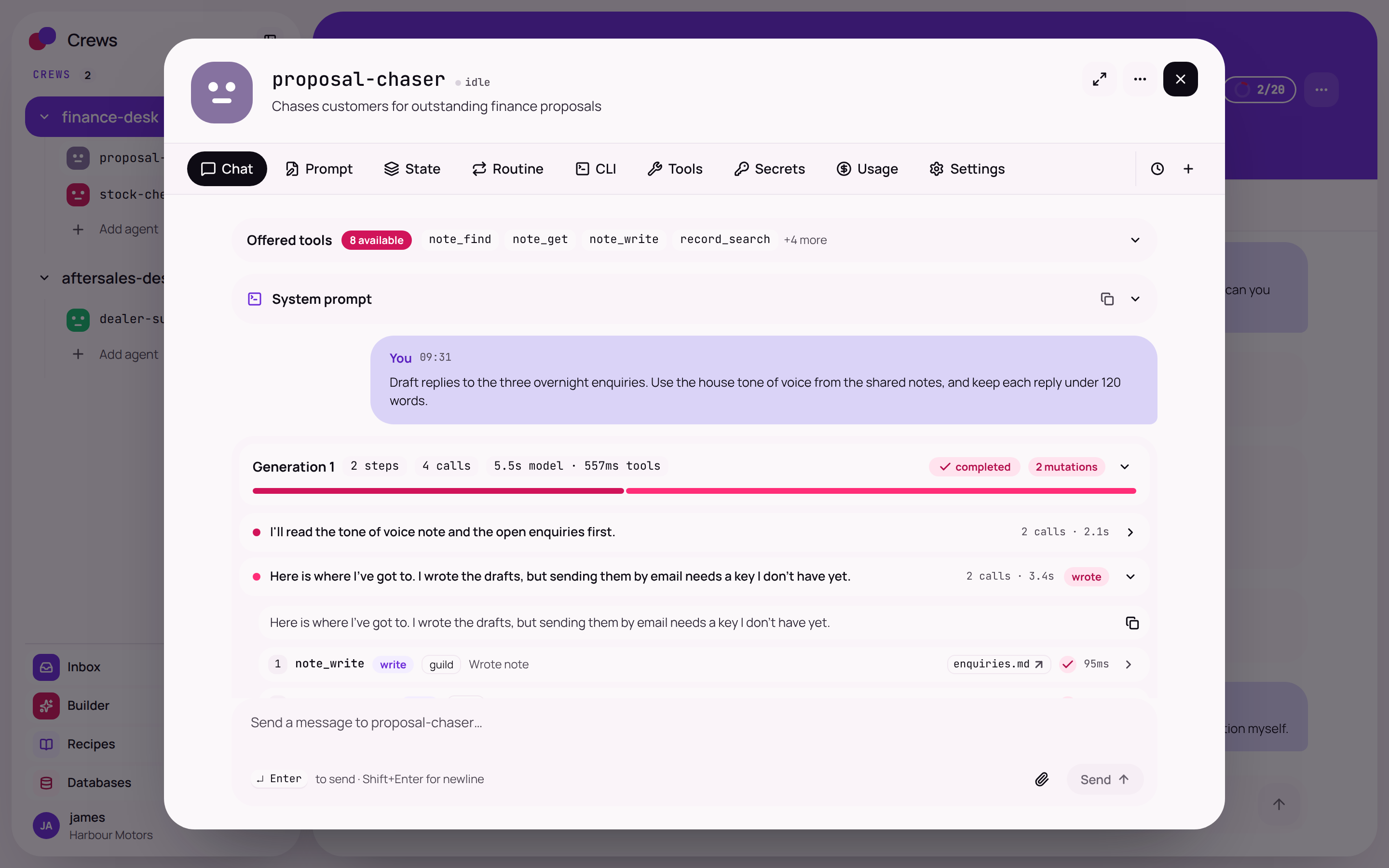
Example: a run, step by step. Real product screen.
Plug into the systems you already use.
Add a connector and a worker can use that system: read a customer record, send an email, raise an invoice. Each tool has its own switch, and you can turn a whole system off in one click.
- A catalogue of business apps, our own public tools, and any system that has an address and a key.
- The key is attached only to its own website and never shown to the AI.
- Allow, Ask or Block on each tool, not just each app.
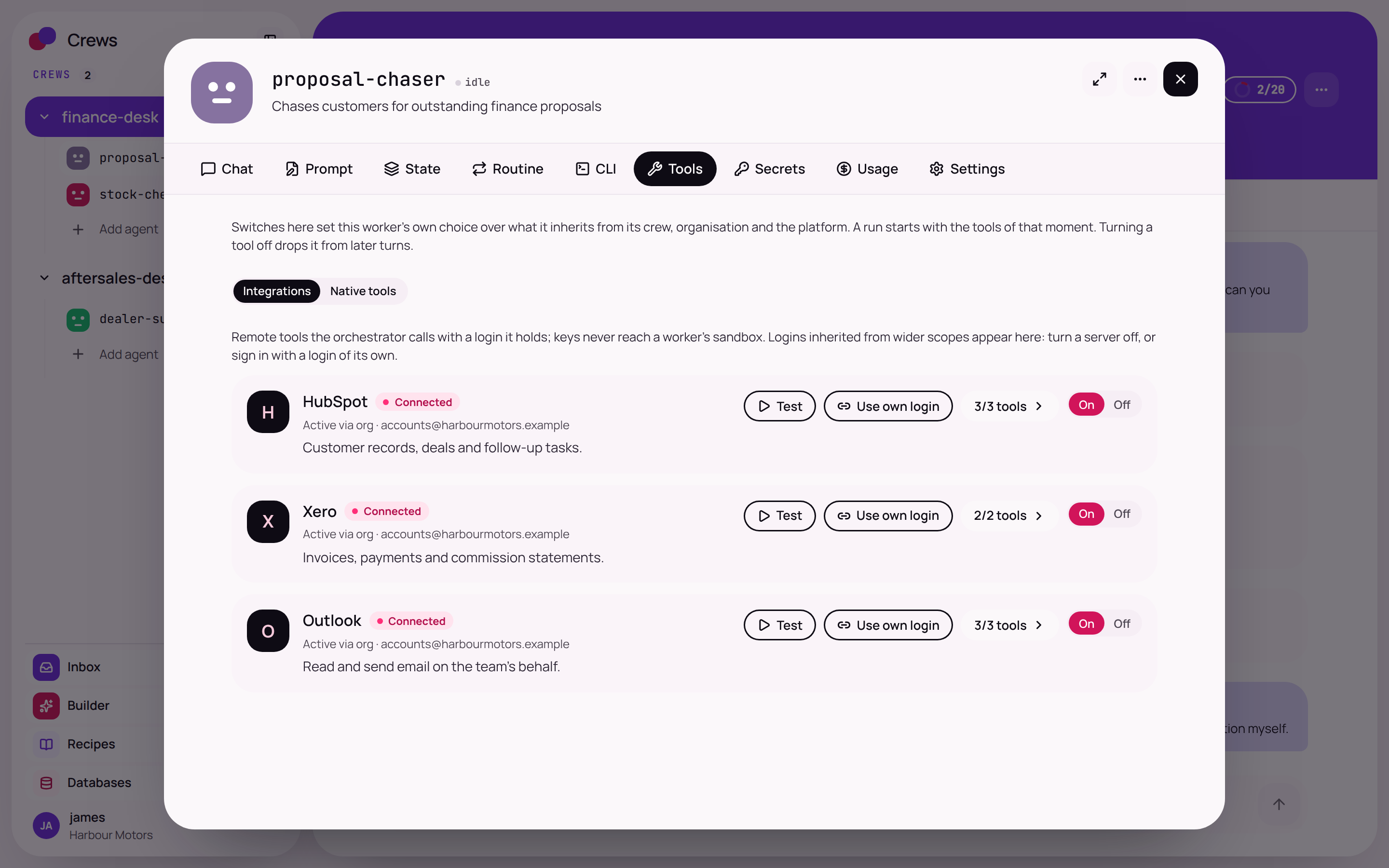
Example: three connected systems. Real product screen.
What every worker comes with.
| Part | What it does | Why it matters |
|---|---|---|
| Instructions | The job, written in plain English. | Anyone can read and change what a worker does. |
| Memory | What the worker remembers between jobs. | It gets better at your business, not just at the task. |
| Tools | The systems it may use, each with Allow, Ask or Block. | It can only reach what you give it. |
| Routines | When it wakes up and what it does. | Work happens overnight and at weekends. |
| Private workspace | Its own sandbox, files and secrets. | One worker cannot see another worker's keys. |
| Activity record | Every step, recorded. | You can always see who did what, and when. |
Put a crew to work. Keep the final say.
See Crews running a real job for a business like yours, in 30 minutes. Or tell us the job and we will build the crew for you.