Home / Capabilities
Phones, email, systems and PCs. All in one crew.
Eight things your workers can do, and the same simple promise behind every one: you decide what a worker may do, you approve what matters, and everything is on the record.
Connect the apps you already use.
Choose an app from the catalogue, sign in once, and your workers can use it: read a customer record, send an email, raise an invoice. If a system is not in the catalogue but has an address and a key, a worker can use that too.
- A catalogue of 1,500+ apps for CRM, email, calendar, accounting, messaging and more, and every action an app offers.
- Each company connects its own accounts, so nothing is shared and nothing is copied around.
- Workers load only the tools a job needs, so they stay quick.
- Events can start a job: a new lead, a paid invoice, a signed document.
- A shelf of our own public tools, free to add, next to the catalogue.
- Any other system with an API works too. The key is kept out of the AI's sight and is only ever sent to the website you approved.
Browse the apps a crew works with
Allow, Ask or Block on every app, and on every action inside it. Start from a careful preset, then fine-tune one action at a time. Reading runs freely; sending, creating or deleting asks first.
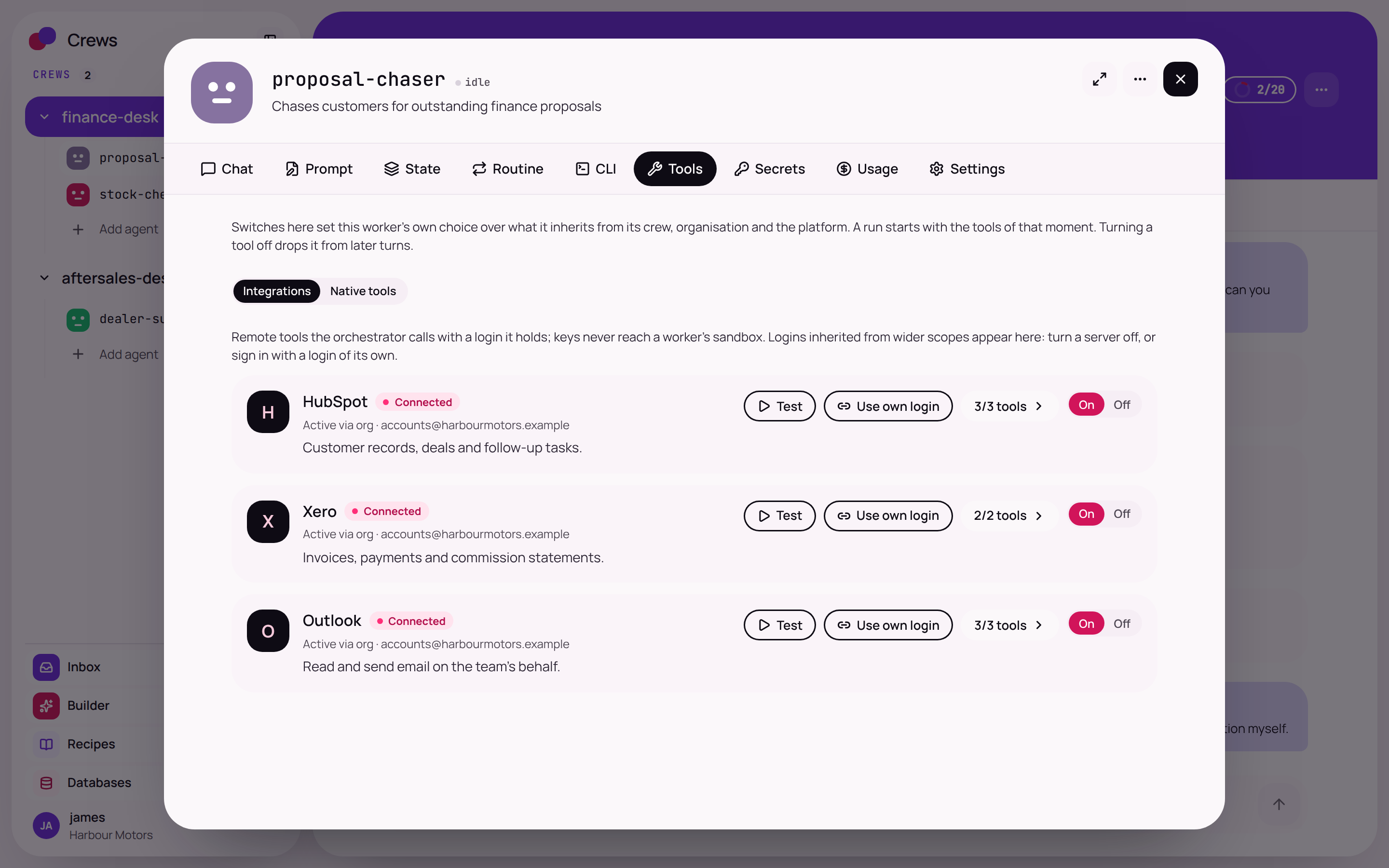
Example from Crews for Motor Trade. Real product screen: three connected systems, each with its own switch.
Let a worker use your PCs.
Some jobs happen in software with no connector. A small helper app on your Windows PCs lets a worker open files and apps, work on screen and use the browser, so those jobs get done too.
- Name each PC, and choose per PC: ask every time, always allow, or never allow.
- Files, apps, the screen and a browser with its own saved logins.
- Learn once, replay with no AI: after a job succeeds it is saved as steps, and next time it runs the same way. The AI only wakes if a step breaks.
- For a password, a 2-step code or a CAPTCHA, the worker pauses. You take over, then say carry on.
- Start a job when something happens on the PC: a file appears, an app opens, a time of day.
The helper calls out to Crews, so nothing is opened on your network. You can watch and take over, pause from the PC, or stop everything in Crews. A log is kept on the PC and in Crews, and a company's workers only ever reach that company's PCs.
Illustration of the per-PC control list. Not a product screenshot.
A phone team member that never misses a call.
Crews Voice answers on your own numbers, in your hours, with your greeting. It knows your business, handles the common calls, and passes the rest to the right person with the full story.
- Reception around the clock: after hours, on holidays, when the lines are busy.
- Checks free slots and books appointments, or logs a callback.
- Voicemail becomes a task, sorted and written up, with a drafted reply.
- Every call gets a recording, a transcript, a summary and next steps.
- Calls out, too: reminders, document chases and follow-ups.
- Smart hold: it asks politely, uses your hold music, does its lookups together and comes back once with the answer.
You set the greeting, the hours and what it may say. Anything it cannot handle goes, still connected, to a person. Calls made on request wait behind an approval you control.
Illustrative conversation. Not a recording or a product screenshot.
Every worker gets an address. You write the rules.
Create addresses like sales@ or support@ in a few clicks, on a shared Crews address or your own domain. Then say, in plain English, what should happen to each email that arrives.
- A rule reads like a sentence: when this arrives, do that, with these safety checks.
- Seven things a rule can do, from acting automatically to simply ignoring.
- Try an email: paste a real one and see what would happen and why. Nothing is sent.
- Publish, roll back in one click, and replay a new rule set on last week's mail.
- One approvals inbox: a drafted reply waits there for the right person.
Every rule starts cautious: draft and wait for your OK. Only when you choose does a worker act on its own. Fakes are caught, customer details need proof of who is asking, an outbound scan stops other people's details leaving, and a stranger's email can never give orders.
THEN draft a reply and wait for my OK
SAFETY check who they are first
Illustration of how a rule reads. Not a product screenshot.
Let another system wake a worker.
Give a worker its own web address and a key. When another system sends a message to that address, it appears in that worker's chat in a box marked From outside, and the worker replies there, like any other message.
- Each worker has its own address and key, and a chat of its own for that webhook.
- Set the rules for it by talking to the worker, in plain words. Each rule is saved as a numbered version, so a change can be undone.
- Click to copy, test with one button, and see a history of every call.
- Repeated calls are spotted, so the same event does not run twice.
- An optional stronger mode checks the sender's signature.
It starts careful: the worker drafts, and waits for your Yes before anything goes out. Anything that gives it more power waits for a Yes from you, and words copied from an outside message can never become a rule. Keys can be changed with a grace period, there is a rate limit and a daily cap, and every call is logged. After your Yes, the worker can act on its own within those limits, and Stop all still works.
Illustration of the three boxes a worker gets. Not a product screenshot.
Use websites the way a person does.
A worker has its own private browser in the cloud, plus web search and a page reader. It checks a rival's offer, finds a specification, or works through a site that has no connector.
- Opens a site, clicks, filters, scrolls and reads the whole page.
- Searches the web for facts, prices and news, and reads any public page as clean text.
- Asks you for a login on a secure card, never in a chat.
- Hands a CAPTCHA or a 2-step code to you, then carries on.
- Watch it work from the worker's page, or stop it.
Text on a web page is treated as untrusted, so it cannot give the worker orders. Private addresses are refused, and a job has limits on its time, size and number of calls. For systems inside your network, the worker can use the browser on your PC instead, under the same rules.
of tasks completed on websites it had never seen, in our tests.
Look and read only: our tests never signed in or submitted anything. See how we test.
Extra abilities, no sign-up needed.
Some abilities are useful to nearly every worker. Superpowers add them without you having to open an account anywhere: search, read, look up, check, transcribe and more.
- Search the web and read any page.
- Look up a company or a person, or check that an email address is real.
- Read a scanned document, or transcribe a call or a voicemail.
- Make a picture, or edit a photo while the product in it stays identical.
- Look up a vehicle from its registration (in Crews for Motor Trade).
- Use them in any worker, with nothing to set up and no sign-up on your side.
Every superpower has its own Allow, Ask or Block switch. Each has a limit for your company and for each worker, checked before every use, and you can switch any of them off.
Illustration of the switches. Not a product screenshot.
The whole of Crews, in your pocket.
Chat with a worker or a whole crew, answer approvals, check routines and watch a job run, from the office, the road or the sofa. Add it to your home screen and it works like any other app.
- A bottom tab bar, full-screen pages and large tap targets.
- Answer an approval card or a message from a worker in a couple of taps.
- Fix a stuck step from your inbox.
- Switch routines on and off and see the next run.
- Paste a key into a secure card on your phone, never into the chat.
- Check what your crews have used against your allowance.
The same sign-in, roles and approvals as on the desktop. An approval notification is one line and nothing more; tap it to see the whole card.

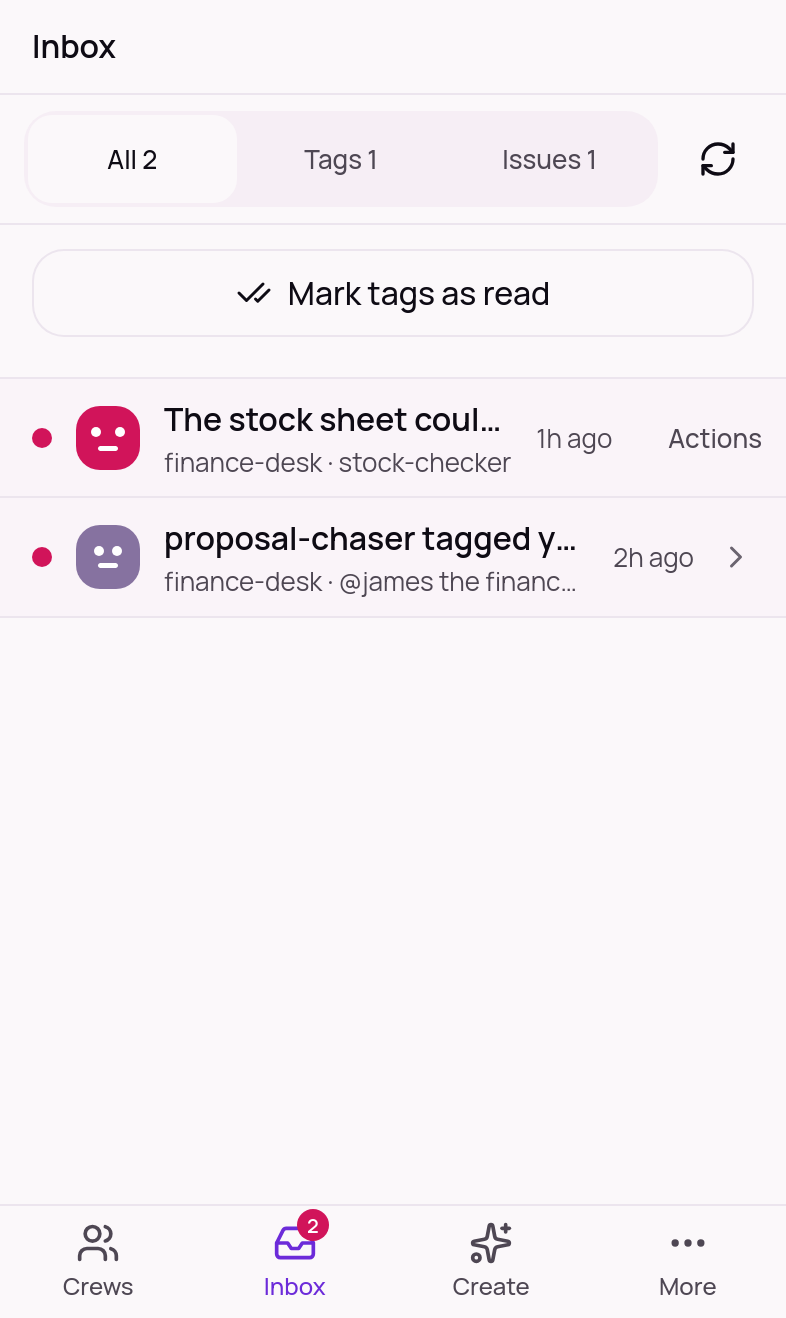
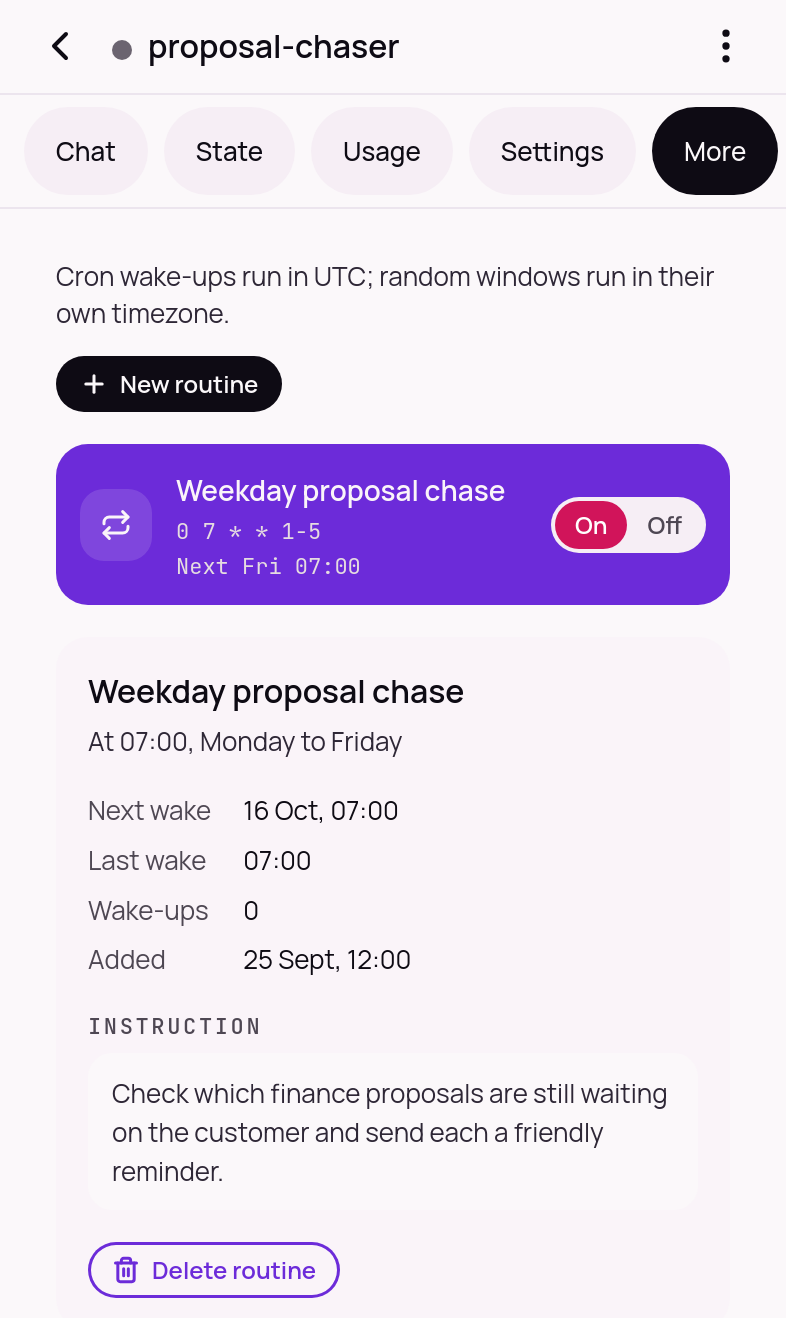
Example from Crews for Motor Trade. Real product screens: crew chat, inbox and a routine.
Put a crew to work. Keep the final say.
See these capabilities running on a real job for a business like yours, in 30 minutes. Or tell us the job and we will build the crew for you.